MacBook Air M1 vs M5: plan one or two external displays
Compare the documented native display limits of the 2020 M1 and current M5 Air, then check the exact monitor, cable and dock chain.
Updated:
1. Identify the generation before buying the dock
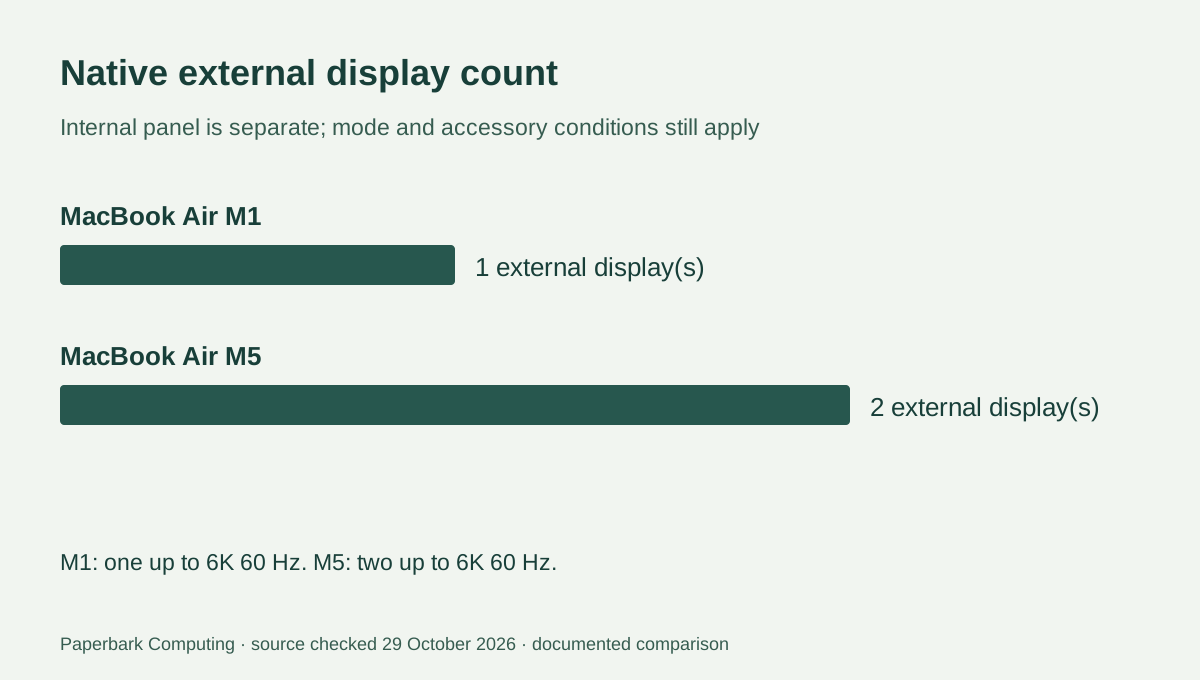
Two MacBook Airs can have USB-C-shaped ports and very different native external-display support. For a desk that needs two external monitors, the actual M1-versus-M5 distinction matters before a dock is purchased. Apple’s documented M1 Air supports one external display up to 6K at 60 Hz alongside its built-in display. Its M5 Air specification supports up to two external displays alongside the built-in display.
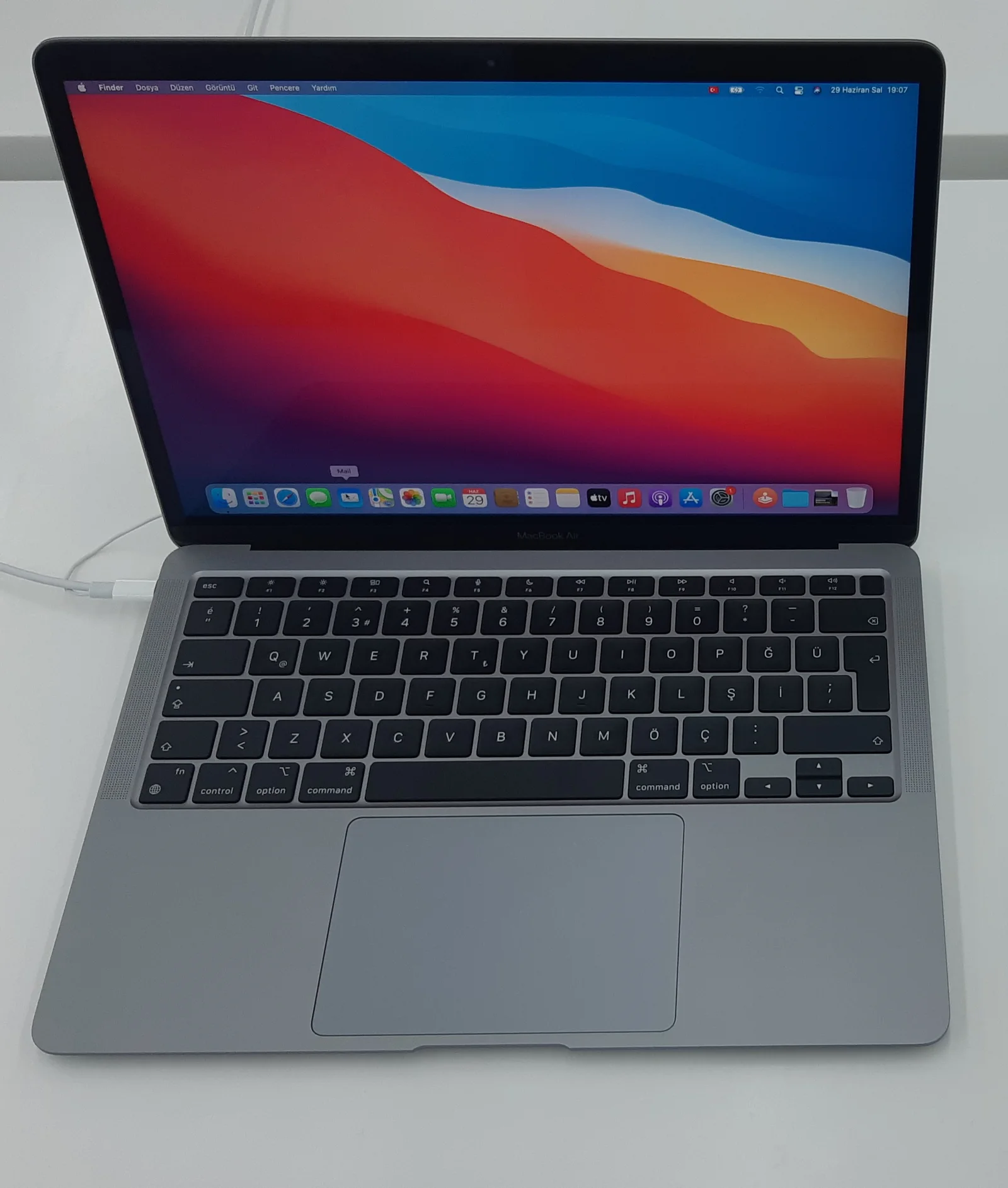
These are Apple’s model-specific specifications checked on 29 October 2026, not measurements we made with the photographed equipment. Confirm the chip and model using About This Mac and Apple’s identification page. A seller description that stops at “13-inch Air” leaves out the information that decides this question. The older real M1 in the photograph is not an M5 unit.
2. Compare the complete documented display mode
A screen count without a resolution and refresh rate is incomplete. The M5 specification lists two displays at up to 6K at 60 Hz or 4K at 144 Hz, and separate higher-resolution or higher-refresh options for one external display. These are alternatives in the manufacturer’s specification, not a menu of maxima to combine arbitrarily.
Both model documents describe simultaneous use of the internal screen within their stated external-display limit. An M1 Air with its own panel plus one monitor is therefore a different setup from a desk requiring two external monitors. Keep the external count distinct from the total number of screens.
| Requirement | MacBook Air M1, 2020 | MacBook Air M5 |
|---|---|---|
| Documented external count | One external display | Up to two external displays |
| Listed 6K mode | One at up to 60 Hz | Two at up to 60 Hz |
| Additional stated modes used here | No second native display established by the cited specification | Two up to 4K 144 Hz; or one up to 8K 60 Hz / 5K 120 Hz / 4K 240 Hz |
| Internal screen | Simultaneously supported within the stated configuration | Simultaneously supported at full native resolution |
| Port description | Two Thunderbolt / USB 4 ports; Thunderbolt 3 support | Two Thunderbolt 4 USB-C ports |
3. A dock’s sockets are not the computer’s display limit
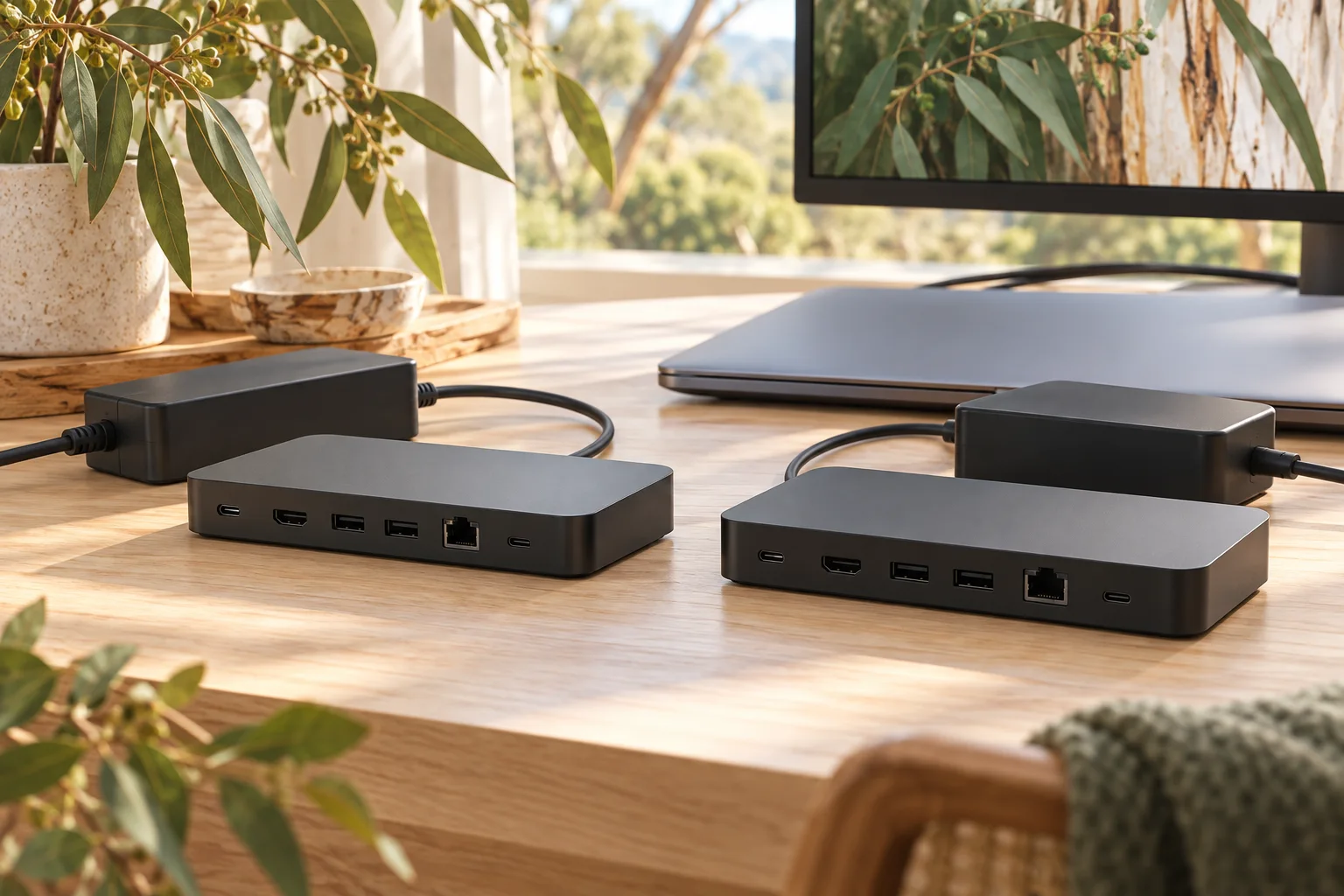
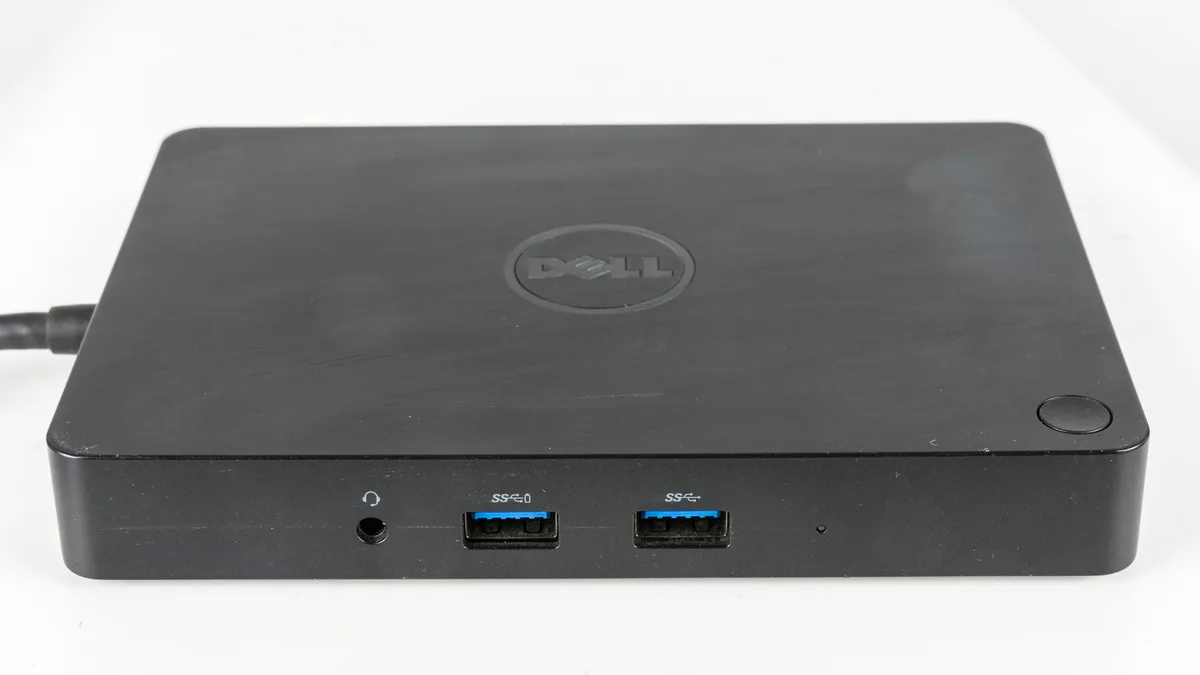
The photographed WD15 dock shows a real physical accessory, not a recommended M5 dock or an approval of every output on it. Count the computer’s documented native displays first. Then check whether the exact dock, firmware, cables and monitor inputs implement the mode you need. A product photo with several connectors cannot establish that the computer will drive several independent desktops through them.
Apple’s M5 specification also describes support for two external displays over one Thunderbolt port. That model capability does not approve an arbitrary USB-C hub. Preserve the exact dock specification and connection method when assessing a single-cable desk. Charging, USB data and display support are separate parts of the chain, even when they share a connector.
4. Reuse the monitor only after identifying its mode
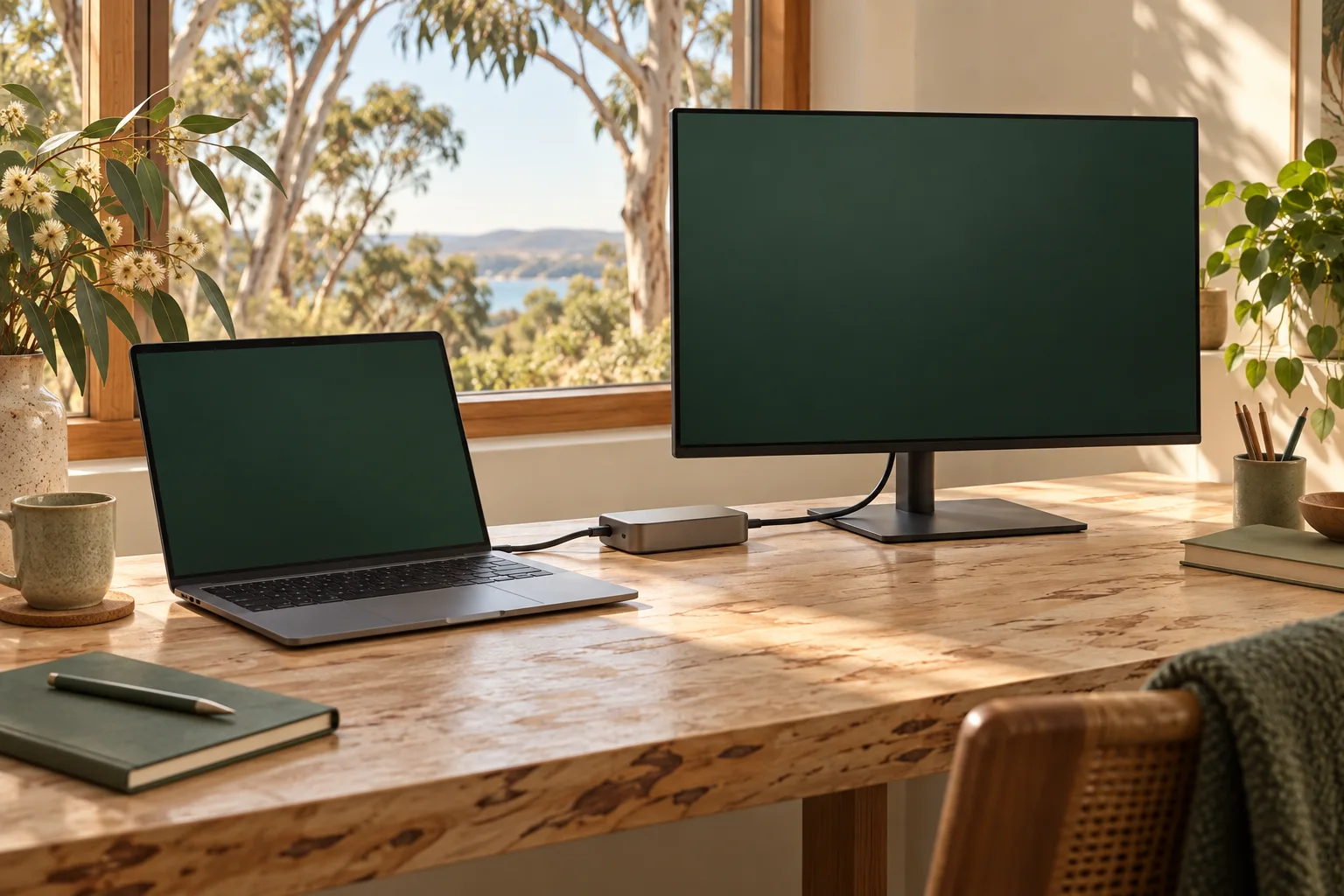
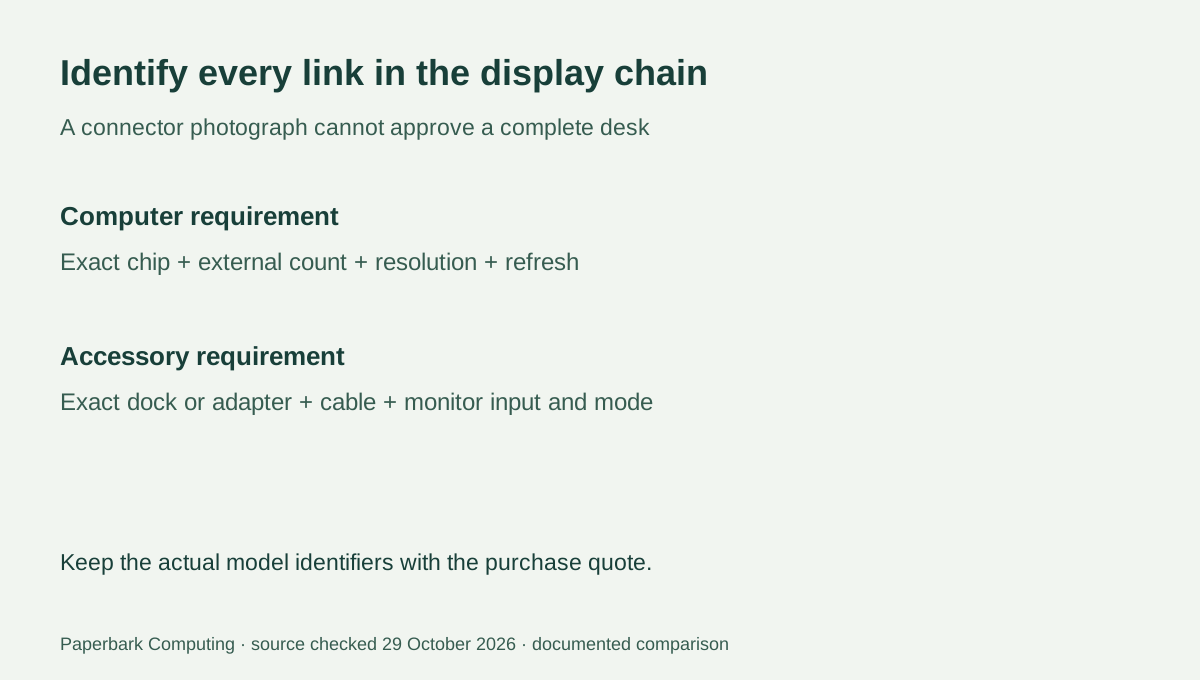
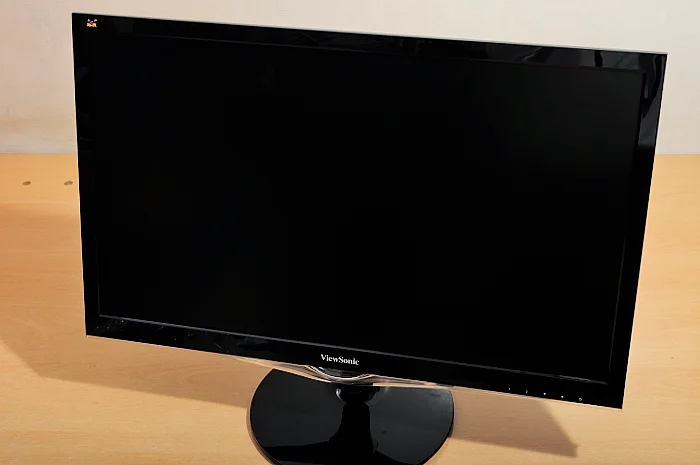
Write down the monitor model, native resolution, intended refresh rate and available input. The older ViewSonic in the photograph is a monitor-identification example; it is not a 6K test display. A cable or adapter must support the actual input and target mode, not merely fit a socket. If a monitor already meets your work, there is no need to replace it just because a newer computer lists a higher maximum.
Compare complete AUD quotes for the computer configuration and any actually required cable, adapter or dock. Keep the monitor you already own at a confirmed retained cost, and leave uncertain accessories unquoted until checked. No live price, stock feed or tested dock list is used here, so we do not turn the manufacturer’s display limit into a claimed cheapest working bundle.
5. Choose the model around the desk you need
An existing M1 Air can meet a one-external-display desk when the documented mode and complete connection chain suit it. If two native external monitors while retaining the built-in panel are a firm requirement, the M5 Air is the relevant candidate of this pair to investigate. Buying a higher-count dock alone does not change the M1 specification being compared.
Before committing, confirm the exact monitor combination and how each display connects. Keep the chip, screen modes and accessory models in the order record. This resolves the useful question—whether the documented computer configuration fits your actual desk—without treating the number of visible USB-C ports as a universal multi-monitor promise.